

Version control is an essential skill for any developer. In this guide, we'll explore Git, the most popular distributed version control system, and get you up and running with the basics.
What is Git?
Git is a distributed version control system (DVCS) created by Linus Torvalds in 2005. It allows multiple developers to work on a project simultaneously without overwriting each other's changes. It tracks the history of changes, allowing you to revert to previous versions if something goes wrong.
Why is Git Used?
Git has become the industry standard for version control for several compelling reasons:
- Collaboration: Multiple people can work on the same project without conflict using branching and merging.
- History & Backup: Every change is recorded. You can go back to any previous state of your project.
- Branching: You can work on new features in isolation (branches) without affecting the main code.
Life Before Git
Before systems like Git, developers often used "suffixed files" to manage versions. You might have seen folders like:
project_final.zipproject_final_v2.zipproject_final_final_REAL.zip
This method is error-prone, hard to merge, and doesn't tell you what changed or who changed it. Git solves this by recording precise "deltas" (changes) and metadata for every modification.
Git Basics and Core Terminologies
Before diving into commands, it's crucial to understand the three distinct states of a Git project:
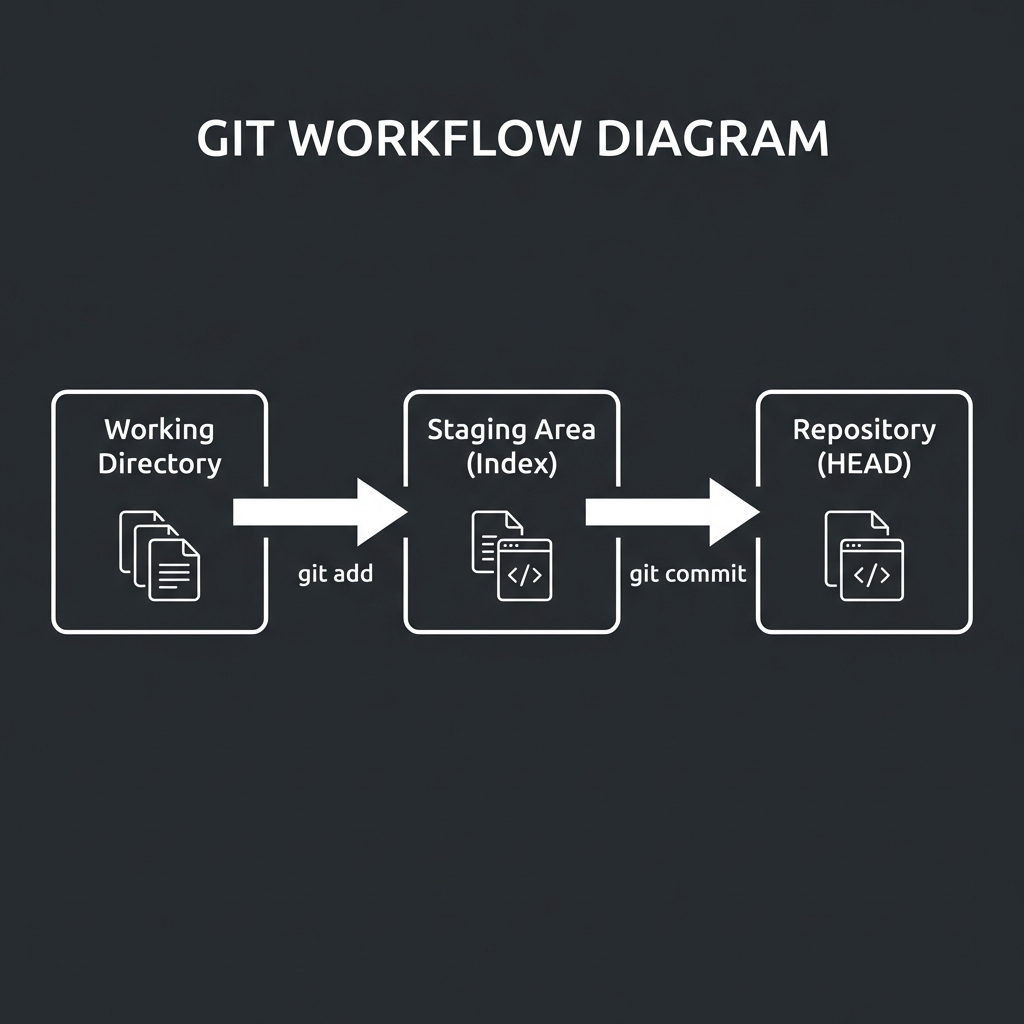
- Working Directory: The files you see and edit on your computer.
- Staging Area (Index): A holding area for changes you want to commit next.
- Repository (HEAD): Where Git permanently stores the snapshots (commits).
Common Git Commands
Let's walk through a typical workflow step-by-step.
1. Start Git in a Project
To start tracking a project, you need to initialize a repository.
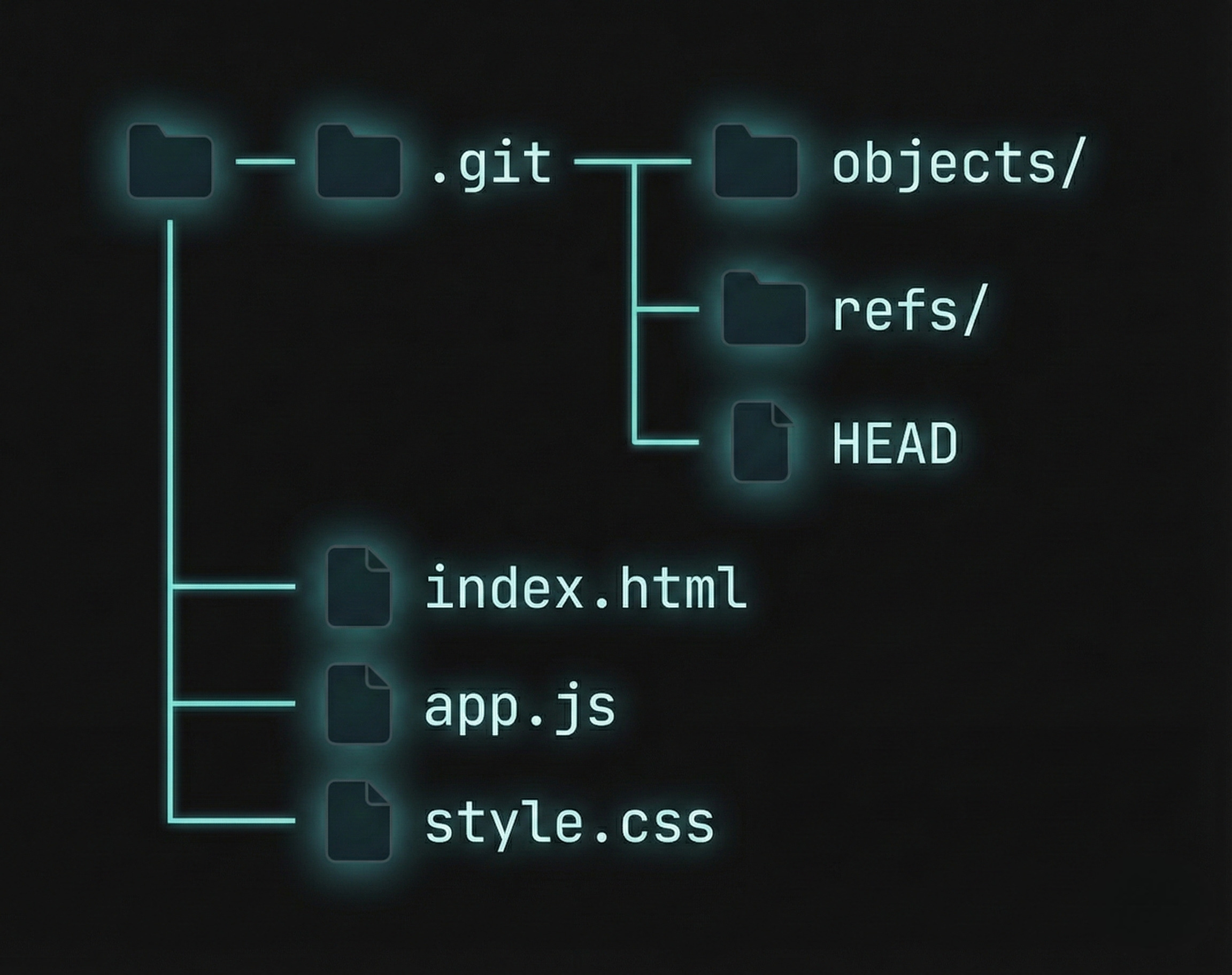
This creates a hidden .git folder that tracks your project.
2. Check What Changed
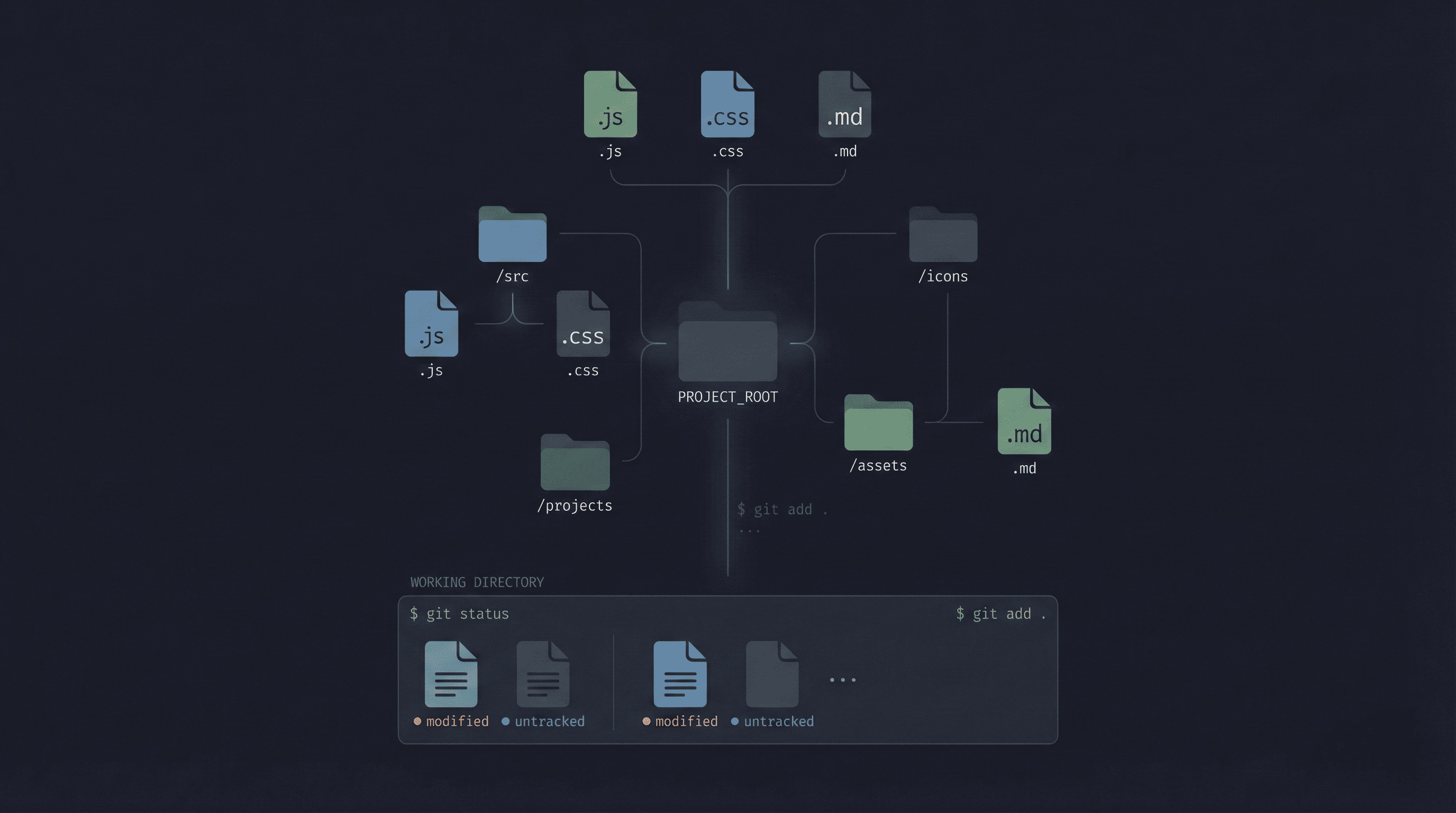
Whenever you modify files, check their status.
Files will show as "Untracked" or "Modified" in red.
3. Stage the Changes
Tell Git which files you want to include in the next save. This moves them to the Staging Area.
# Or add all changes git add .
4. Save a Snapshot (Commit)
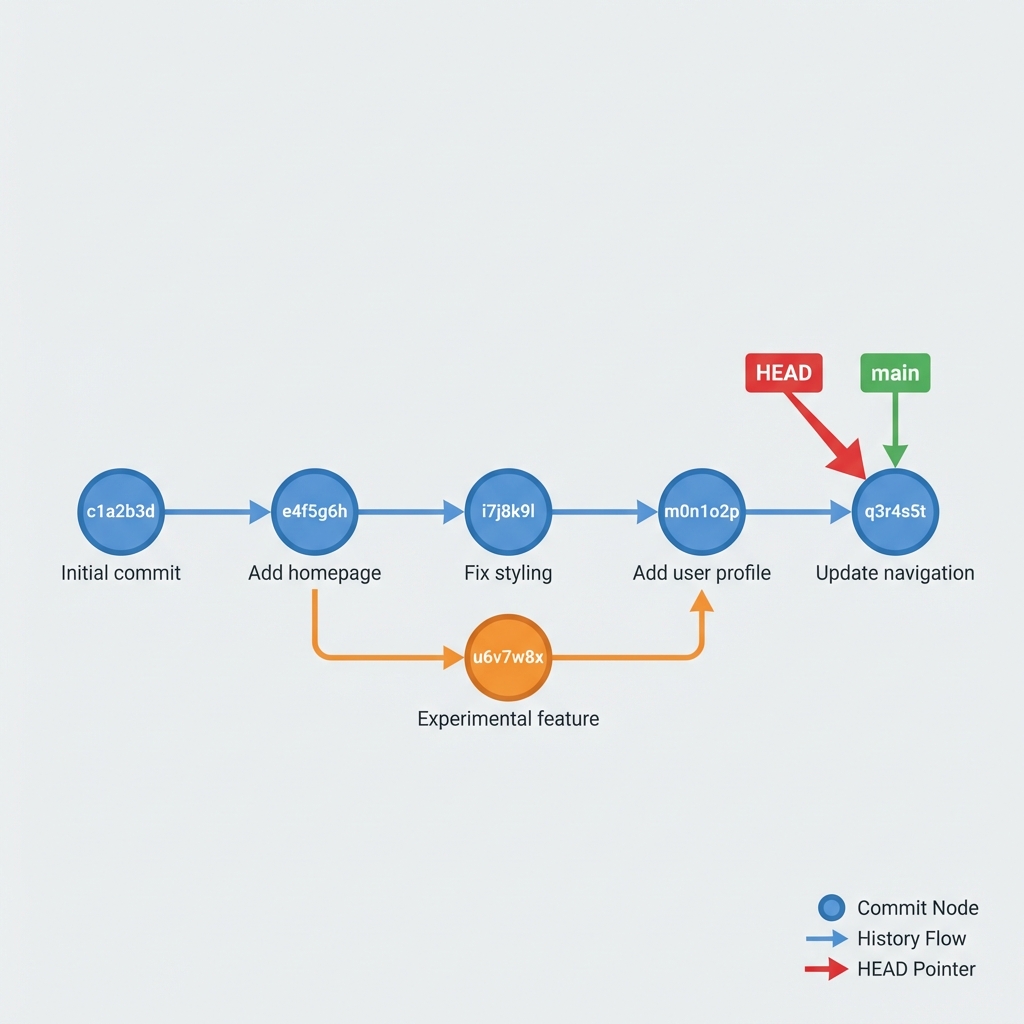
Permanently save the staged changes to the repository history.
5. View Past Commits
See a log of all changes made to the project.
Local Repository Structure
Your local Git environment consists of your actual files (Working Directory) and the hidden .git folder (Repository). All the magic happens inside that .git folder, while you work with normal files in your directory.
Conclusion
Git is a powerful tool that transforms how developers build software. While it has many more advanced features like branching and remote repositories (GitHub/GitLab), these basics: init, add, commit, and status are the foundation of your daily workflow.